Stream Overlay Template Design: From Sketch to Final Product
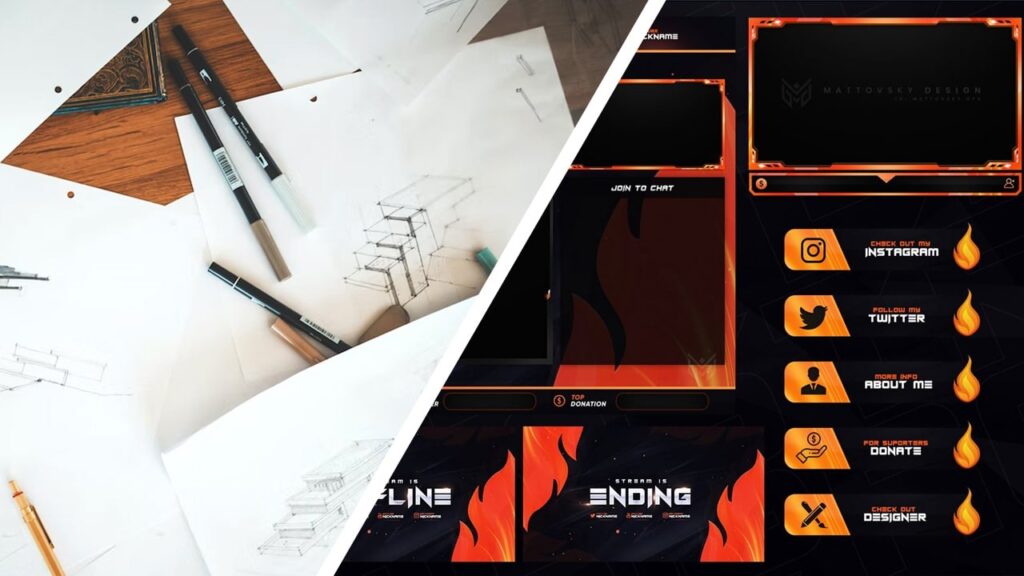
As a streamer, having a professional and cohesive look is essential to stand out in the crowded world of online broadcasting. One way to achieve this is through the use of a stream overlay template, which can be added to your stream to give it a polished and cohesive look.
What do you need to know before designing a stream overlay?
But where do you start when it comes to designing a stream overlay template? The process can seem daunting, but with a little planning and creativity, it’s easier than you might think. Here’s a step-by-step guide to take you from initial sketching and brainstorming to the final product.
Step 1: Brainstorm and sketch out your ideas
Before you even open up a design program, it’s important to take some time to brainstorm and sketch out your ideas for your stream overlay template. Consider the overall look and feel you want to achieve, as well as any specific elements you want to include. This could be things like your stream name and logo, social media links, a webcam frame, and any other graphics or elements that will help to enhance your stream.
Take some time to sketch out a few different ideas, and don’t be afraid to get creative. The more ideas you have, the more options you’ll have to choose from when it comes time to start designing.
Step 2: Choose a design program
There are a variety of design programs you can use to create your stream overlay template, including Adobe Photoshop, Illustrator, and Inkscape. Each program has its own set of tools and features, so it’s important to choose one that best fits your needs and skill level.
If you’re new to design, you may want to start with a program that has a more user-friendly interface, such as Canva or GIMP. These programs have a wide range of templates and pre-designed elements that you can customize to fit your needs, making it easier to create a professional-looking stream overlay template.
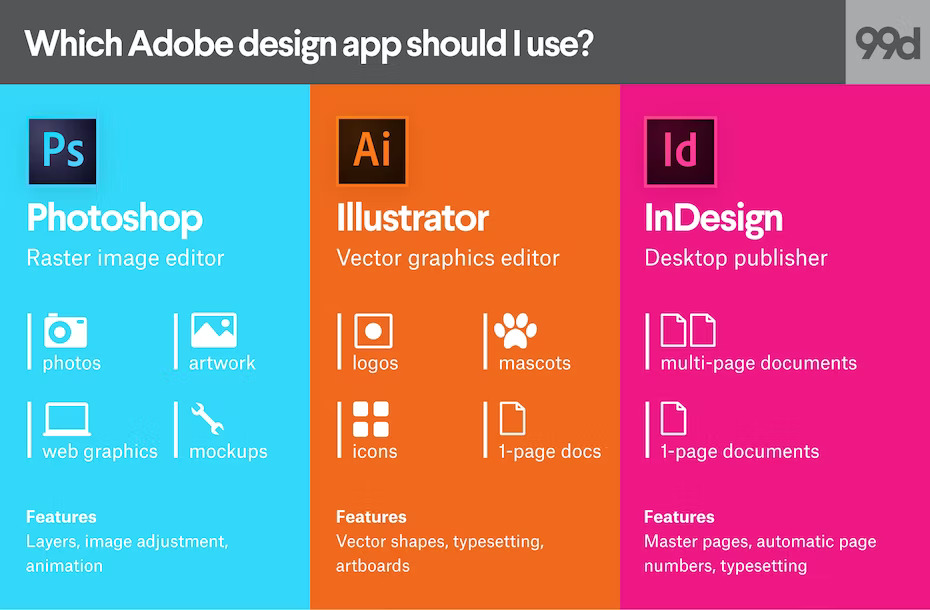
Step 3: Set up your canvas and design elements
Once you’ve chosen a design program, it’s time to start setting up your canvas and designing your stream overlay template. Begin by setting up your canvas size based on the dimensions of your stream window. This will ensure that your overlay template fits properly and looks good on screen.
Next, start adding in the elements you brainstormed and sketched out in step one. This could include your stream name and logo, social media links, a webcam frame, and any other graphics or elements you want to include. Be sure to consider the overall look and feel of your stream as you design, and try to create a cohesive and professional-looking template.
Step 4: Tweak and fine-tune
As you work on your stream overlay template, you’ll likely want to make a few tweaks and adjustments along the way. This could include changing the color scheme, adjusting the placement of elements, or adding in additional graphics or elements.
Take your time as you fine-tune your design, and be sure to get feedback from others as you go. This can help you ensure that your stream overlay template is as polished and professional as possible.
Step 5: Export and add to your stream
Once you’re happy with your stream overlay template, it’s time to export it and add it to your stream. Most design programs will allow you to save your design as a PNG or GIF file, which can then be easily added to your stream using tools like StreamLabs, OBS or XSplit.
With a little planning and creativity, it’s easy to create a professional and cohesive stream overlay template that will help you stand out in the crowded world of online broadcasting.
